Use the app
Review a month
Use Calendar to find blank days, correct records, and check the month before claim preparation.
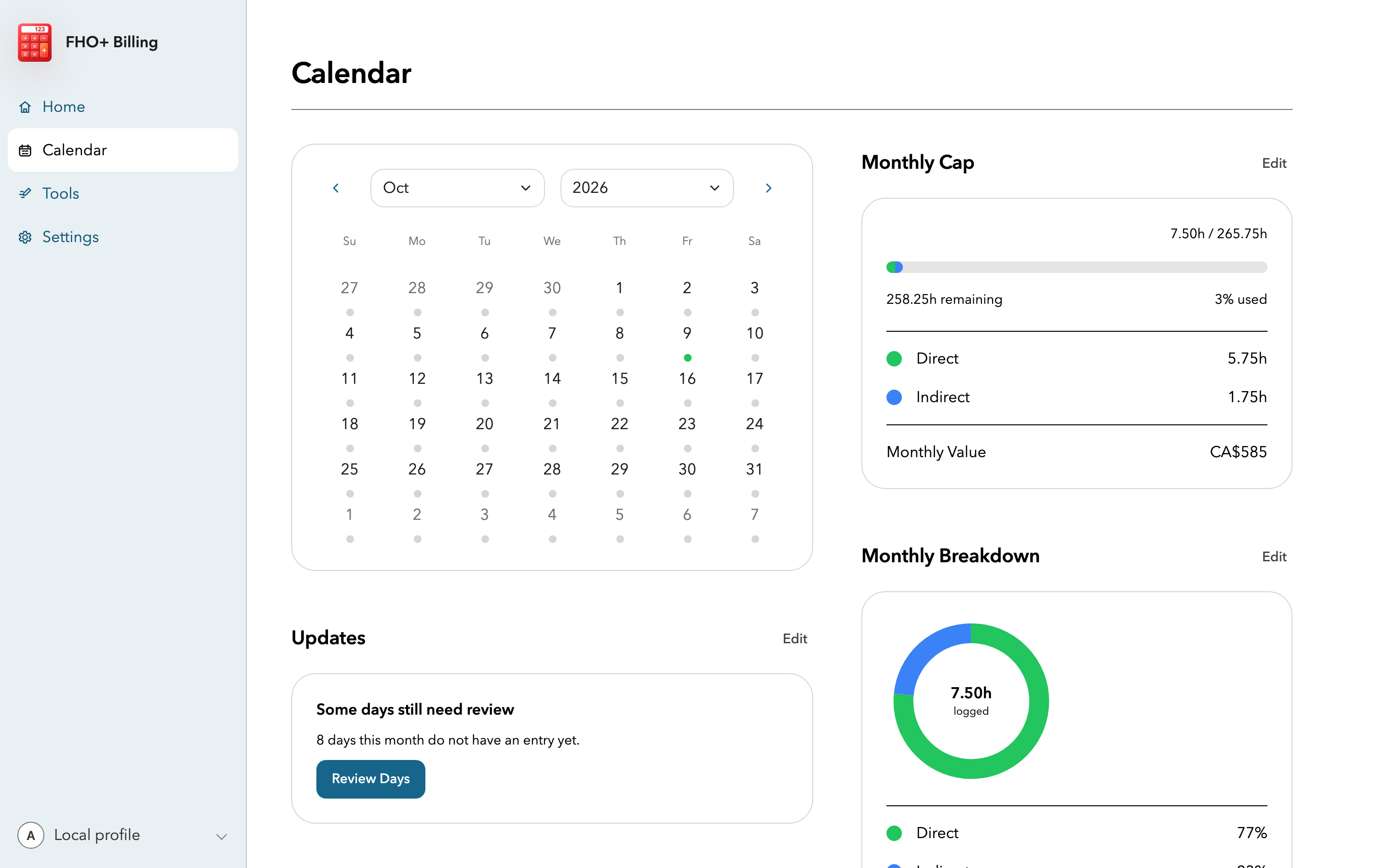
Quick answer: Calendar is the month-level review screen. Scan the dates first, open prompts in Updates, correct individual days, and check the monthly breakdown before generating a report.
Last reviewed October 9, 2026
Scan the month
- Choose the billing month and look for blank dates, unusually high totals, and days that do not fit your work pattern.
- Open Updates to see missing-entry, daily-limit, monthly-limit, support-pool, clinical-administration, and additional-indirect prompts.
- Mark a day as zero only when you know that no eligible time was worked. Leave an uncertain day for review.
Correct a day
- Select the date and compare each category with your source records.
- Correct the time and update the activity summaries for indirect care or clinical administration.
- If optimized indirect care is on, make sure the suggested amount does not exceed the time you actually worked.
- Save the revised day and return to the month summary.
Finish the review
- Check total time against the month's prorated maximum.
- Check indirect care plus clinical administration against the combined support limit.
- Check clinical administration against its separate limit.
- Generate a billing summary only after the daily records are complete and reconciled.
Important notes
- A blank day is a prompt to check your records. It is not evidence that billable work occurred or that work was missed.